Microsoft Defender for Office 365 Overview
Last updated: 2026-07-27
References
Defender for Office 365 protects email and collaboration against phishing, malware, malicious links, business email compromise, and related attacks across Exchange Online, Teams, SharePoint, and OneDrive capabilities.
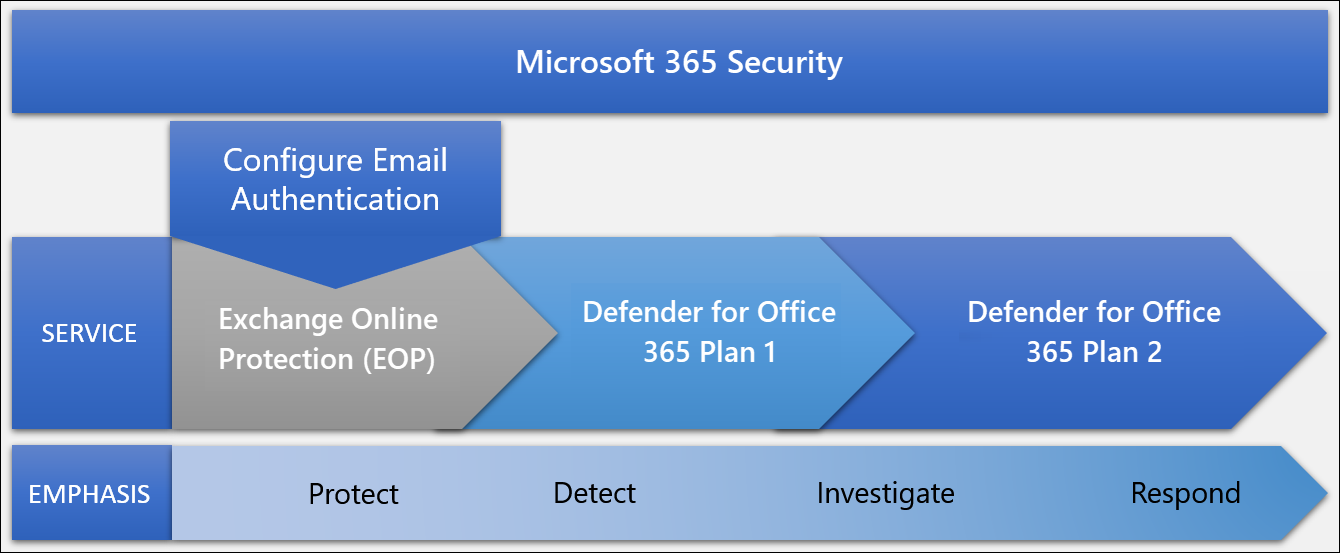
Source: Defender for Office 365 protection ladder.
Why enable it
Email and collaboration are the number-one entry point for attacks, and business email compromise is among the costliest. Defender for Office 365 adds time-of-click link protection, attachment detonation, and impersonation defense that basic spam filtering does not provide, plus tools to hunt and remediate what gets through.
| Without Defender for Office 365 | With Plan 1 or Plan 2 enabled |
|---|---|
| Links are checked only at delivery | Safe Links re-checks URLs at time of click |
| Attachments rely on signature scanning | Safe Attachments detonates files in a sandbox |
| Impersonation and BEC are hard to catch | Impersonation and spoof intelligence flag them |
| Post-delivery cleanup is manual | Explorer and automated response hunt and remove threats |
Value in one line: it defends the most-attacked surface, the inbox, with active detonation, click-time protection, and fast post-delivery remediation.
How it works
Defender for Office 365 layers on top of Exchange Online Protection. Safe Attachments detonates inbound files in an isolated sandbox before delivery, and Safe Links rewrites URLs so they are re-checked at the moment a user clicks, catching links that were weaponized after the message arrived. Impersonation and spoof-intelligence models defend against business email compromise, and protection extends to links and files shared in Teams, SharePoint, and OneDrive.
Plan 2 adds the hunting and response layer: Threat Explorer and campaign views show what got through, and automated investigation and response can remove malicious messages from mailboxes across the tenant. Signals feed Defender XDR, so an email threat is correlated with the endpoint and identity it touches.
Protection ladder
| Level | Main addition |
|---|---|
| Built-in cloud mailbox protection | Exchange Online Protection controls |
| Plan 1 | Safe Links, Safe Attachments, impersonation protection, and real-time detections |
| Plan 2 | Threat Explorer, campaigns, attack simulation, and automated investigation and response |
Configure
- Confirm licenses and accepted domains; configure Sender Policy Framework (SPF), DomainKeys Identified Mail (DKIM), and Domain-based Message Authentication, Reporting, and Conformance (DMARC).
- Apply Standard or Strict preset security policies to a pilot group.
- Review anti-phishing, anti-malware, anti-spam, Safe Links, and Safe Attachments.
- Configure user reporting, submissions, quarantine, alerts, and notifications.
- Extend supported protection to Teams, SharePoint, and OneDrive.
- Pilot simulations and automation before organization-wide use.
Verify and operate
- Use Microsoft-provided simulation or test capabilities, never real malware.
- Confirm message traces, submissions, Explorer or detections, and incidents.
- Monitor policy exceptions, forwarding, spoofing, and high-risk users.
- Test mailbox remediation, malicious-message removal, and communications.
Operational decisions
- Establish who approves tenant-wide message removal, account restriction, and user communications, especially when executive or legal mailboxes are affected.
- Test Safe Links, Safe Attachments, and anti-phishing policies in pilot groups before escalating the action from monitoring to blocking.
- Retain message ID, recipient scope, URL or attachment evidence, policy action, remediation result, and user-notification record for investigations.
Business example
Safe Links allows a URL at delivery, but the destination is weaponized later. When a user clicks it, Defender blocks the connection and the SOC uses Threat Explorer to find identical messages. Automated investigation removes the emails from remaining mailboxes, while the team adds the sender pattern to its phishing awareness review.
Architecture and prerequisites
- Layering: Defender for Office 365 builds on Exchange Online Protection; native deployment on Exchange Online needs no Mail Exchange (MX) record change.
- Safe Attachments: sandbox detonation before delivery, with dynamic delivery to reduce latency.
- Safe Links: URL rewrite and time-of-click checking, including in Teams and Office apps.
- Policies: Standard and Strict preset policies apply Microsoft-recommended settings; email authentication (SPF, DKIM, DMARC) underpins anti-spoofing.
- Licensing: Plan 1 (protection) and Plan 2 (Threat Explorer, attack simulation, and automated investigation and response).
Advanced hunting example
Trace clicks on a malicious URL after delivery:
UrlClickEvents
| where Timestamp > ago(7d)
| where ActionType == "ClickAllowed"
| project Timestamp, Url, AccountUpn, NetworkMessageId
Find phishing messages that were delivered and retain the message identifier for Threat Explorer or remediation review:
EmailEvents
| where Timestamp > ago(7d)
| where ThreatTypes has "Phish"
| project Timestamp, NetworkMessageId, SenderFromAddress, RecipientEmailAddress,
  Subject, DeliveryAction, DeliveryLocation, ThreatTypes
| order by Timestamp desc
Use Threat Explorer and automated investigation to remove malicious messages tenant-wide, and feed signals into Defender XDR for cross-domain correlation.
Hunting data lifecycle
Use message and click hunting as an investigation aid, not as the sole legal or compliance archive. Before creating custom detections, confirm the tenant's available schema, retention, licensing, and the precise meaning of the action values returned by the query. Scope queries by time, sender, recipient, message identifier, or URL where possible, then preserve the query parameters, result reference, and message-remediation decision with the incident record.
Coordinate message removal with retention, eDiscovery, legal-hold, and user communications processes. A remediation action can reduce user exposure while separate governance controls preserve information required for investigation or regulatory obligations. Revalidate hunting and response playbooks whenever mail flow, Safe Links policy, accepted domains, or collaboration protection settings change.