Microsoft Entra ID Protection Overview
Last updated: 2026-07-27
Microsoft Entra ID Protection detects and reports risky users, risky sign-ins, and risk detections. Conditional Access can use that risk to require secure authentication, password change, or access blocking. It applies Microsoft's signal from trillions of authentications to spot compromised identities in real time.
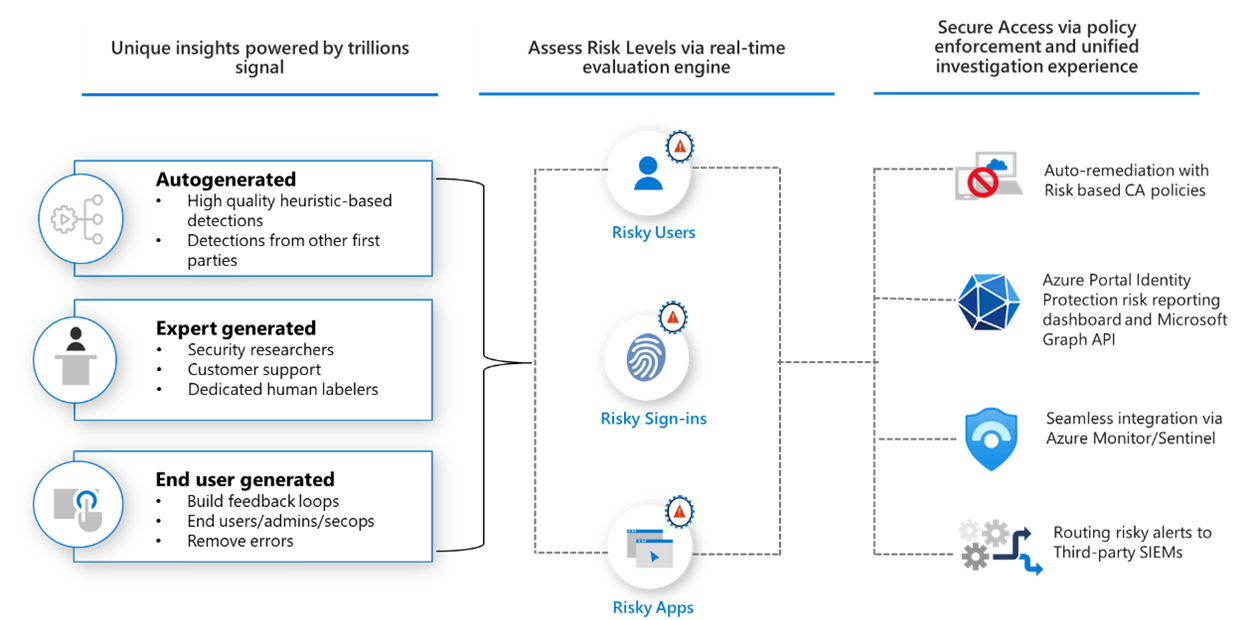
Source: What is Microsoft Entra ID Protection.
Why enable it
Stolen credentials are the most common way into a tenant, and static rules cannot tell a legitimate sign-in from an attacker using the right password. ID Protection scores risk continuously and lets Conditional Access respond automatically, prompting for multifactor authentication (MFA), forcing a password reset, or blocking access.
| Without Entra ID Protection | With risk policies enabled |
|---|---|
| Compromised sign-ins look legitimate | Risk scoring flags anomalous and leaked-credential logins |
| Response to account risk is manual | Conditional Access auto-remediates risky sign-ins |
| Risky users are found after damage | Ongoing user-risk detection surfaces them early |
| Identity risk is disconnected from the SOC | Risk events feed Defender XDR and Sentinel |
Value in one line: it automatically challenges or blocks compromised sign-ins the moment risk appears, closing the most common path into the tenant.
How it works
Entra ID Protection scores risk from Microsoft's view of trillions of authentications. Real-time and offline detections evaluate each sign-in and user for signals such as impossible travel, anonymized IP addresses, password spray, and leaked credentials, producing a sign-in risk level and a user risk level.
Conditional Access consumes that risk to respond automatically: a risky sign-in can be challenged with multifactor authentication, a risky user can be forced to reset a password, and high risk can be blocked outright. The recommended pattern is to roll policies out in report-only mode first, exclude emergency-access accounts, and feed the risk events into Defender XDR or Sentinel for investigation.
Configure
- Confirm Microsoft Entra licensing, roles, emergency accounts, and user scope.
- Require multifactor authentication registration through an approved policy.
- Create user-risk and sign-in-risk Conditional Access policies in report-only mode.
- Exclude emergency access accounts and account for service identities correctly.
- Review impact, then move policies to enforcement through staged groups.
- Integrate risk events with Defender XDR, Sentinel, or case management as needed.
Verify and operate
- Monitor risky users, risky sign-ins, and risk-detection investigation status.
- Validate Conditional Access results with the What If tool and sign-in logs.
- Test self-service password reset and secure account recovery.
- Investigate risk with endpoint, email, identity, and cloud-app evidence.
- Review exclusions and emergency account health on a fixed schedule.
Architecture and prerequisites
- Detections: real-time (at sign-in) and offline (post-processing) detections feed a sign-in risk level and a user risk level; leaked-credential matching uses Microsoft threat intelligence.
- Licensing: full risk detail and risk-based Conditional Access require Microsoft Entra ID P2; P1 and free surface reduced signal.
- Enforcement: Conditional Access user-risk and sign-in-risk policies decide the response, and self-service password reset enables auto-remediation of risky users.
- Break-glass: always exclude emergency-access accounts from risk policies.
Detections and Sentinel hunting example
Risk detections include anonymous IP address, atypical or impossible travel, malware-linked IP, password spray, and leaked credentials. Feed events to Microsoft Sentinel through the Entra connector and hunt in SigninLogs:
SigninLogs
| where TimeGenerated > ago(7d)
| where RiskLevelDuringSignIn in ("high", "medium")
| project TimeGenerated, UserPrincipalName, IPAddress, Location, RiskEventTypes
Roll policies out in report-only mode, review impact with the What If tool, then stage enforcement.
Group risky sign-ins by account and source address to identify repeated access attempts that may need a Conditional Access or identity-response investigation:
SigninLogs
| where TimeGenerated > ago(7d)
| where RiskLevelDuringSignIn in ("high", "medium")
| summarize riskySignIns = count(), locations = make_set(Location, 10)
    by UserPrincipalName, IPAddress
| order by riskySignIns desc
Important
Entra ID Protection is related to the Microsoft security ecosystem but is not a Defender for Cloud workload plan. Avoid locking out administrators by moving directly from an untested policy to tenant-wide enforcement.
Operational decisions
- Keep emergency access accounts outside routine risk-policy enforcement and test them regularly under a documented, audited break-glass procedure.
- Roll Conditional Access policies through report-only, pilot, and broad scopes; measure both blocked risk and false-positive support impact at every stage.
- Retain risk event, sign-in ID, policy result, account action, exclusion reason, and restored-access evidence with each high-risk response.
Business example
Entra ID Protection flags a user sign-in as high risk because the password appears in a leaked-credential set. A report-only Conditional Access policy confirms it would require MFA without affecting emergency accounts. The team then enables the policy for a pilot group, forces a password reset for high user risk, and expands enforcement after reviewing sign-in logs and support impact.